Publishing
Models and their report pages reach OpenBI Server from OpenBI Studio. Each publish is a new version of an item in a workspace, and a version is never altered or deleted. This page is the server’s side; the studio’s is Publish to OpenBI Server.
From OpenBI Studio
In OpenBI Studio, Home › Publish: the server’s address, Sign in in your browser, the workspace, what goes, and Publish version N. Contributors, Members and Admins of a workspace may publish to it, and so may server administrators. A Viewer is told it takes a Contributor or more.
How the studio signs in
The studio asks the server where its sign-in is, then opens the system’s browser there. The person signs in as they always do, password and authenticator code, or comes straight back if they are signed in already. The browser hands a one-time code back to the studio on the person’s own computer; the studio never sees the password. It keeps its sign-in on that computer and signs in to the server’s API with short-lived access tokens.
- With OpenBI Accounts there is nothing for IT to do: OpenBI Accounts registers OpenBI Studio itself.
- With your own provider, register the studio there once: see Your own sign-in provider.
What is published
One file, the same .openbimodel that Share the model writes:
- Always: the model.
- As the developer ticks them: its report pages, notebooks and analytics, their own files, and the model’s data as it is in the studio.
- Never: the project’s version history, the computer’s caches, or any credentials. The server signs in to the data sources with credentials of its own: see Data sources and credentials.
- Plan review pages stay out unless ticked: each carries its plan’s numbers, which the model’s roles don’t protect.
What the server checks
Before it keeps anything, the server checks the file, and says what it refused and why:
- It is a shared project: a zip with OpenBI’s manifest, every file inside the project’s folder.
- No stored credentials: nothing that looks like them, such as
.envfiles,.pfxcertificates or private keys, and nothing of the project’s git history or the studio’s own folders. - Its size: up to 1 GB by default. A larger model is refused, and the studio says why: publish it without its data, or IT raises the limit (
Publish:MaxBytes, see Settings).iis setuplets as much through IIS, anddoctorwarns when IIS lets less through. - Relationships Power BI refuses: a model with two relationships between the same columns, or a second active path between two tables, is refused as Power BI Desktop refuses it, with the engine’s message and its fix. Nothing is kept.
Versions
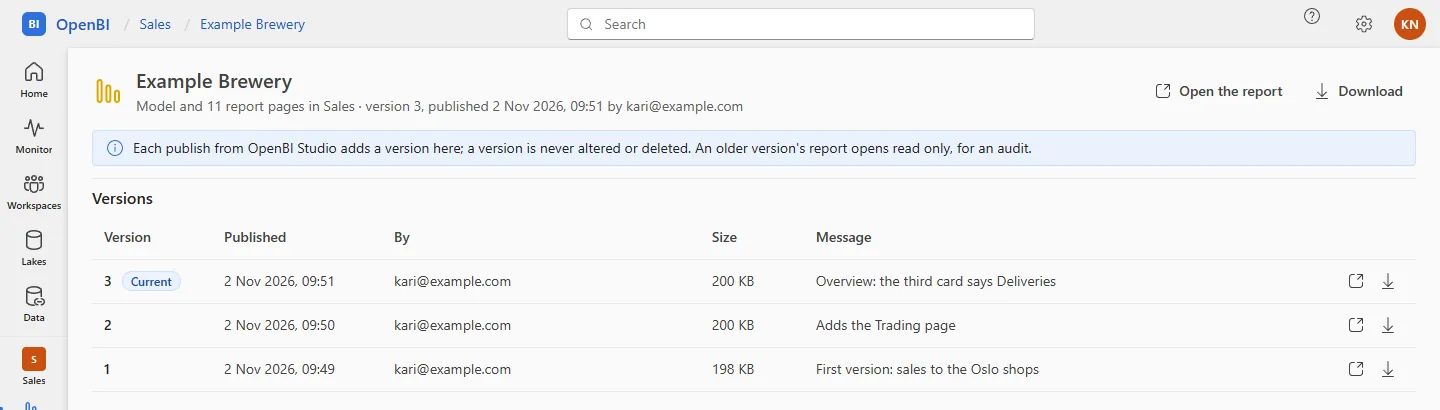
Each publish makes the item’s next version: 1, 2, 3 and on. The item is named after the project unless the developer names it, and its name makes its address, /w/<workspace>/<item>. For each version the server keeps:
- the file exactly as it came, with its SHA-256;
- who published it, when, and their message;
- an entry in the audit log.
A version is never altered or deleted, because a financial audit may ask what a report showed on a given day. The item’s current version is its latest; its report opens on that.
The item’s … menu, Versions, lists them, the newest first: Version, Published, By, Size, Message. An older version’s report opens read only, marked as such, for the workspace’s Contributors, Members and Admins; a Viewer opens the current version only. Contributors and up may download any version. What the current version holds, its pages, predictions, notebooks, lake loads, roles and queries, is under the item’s What’s inside: see The portal.
What carries over to a new version
- Carried over: the data sources’ credentials, the refresh schedule and a live model’s Viewer setting: they belong to the item, not the version. Who may open it is the workspace’s, as before.
- Its data: a new version starts with the data published with it. Published without data, it says so until it is refreshed on the server.
- Pages edited in the browser: saving them makes a version too, “Edited in the browser by <name>”. OpenBI Studio offers to pull them into the project: see Pages edited on the server.
From the command line
IT can publish a .openbimodel file on the server itself, by the same rules, in the audit as the command line:
OpenBI.Server.exe publish --workspace "Sales" --file "C:\Temp\Sales model.openbimodel" --name "Sales" --message "Q4 targets"
OpenBI.Server.exe items --workspace "Sales"
OpenBI.Server.exe versions --workspace "Sales" --item "Sales"itemslists what is published in a workspace, at which version;versionslists an item’s versions with their size, SHA-256 and message.- Plan review pages in the file are left out, and said.
--include-review-pages "<page>, <page>"keeps those named; one whose plan has a row per customer or person also needs--confirm-person-rows.
Archive an item
Members and Admins archive an item from its … menu, Archive item: it is hidden from the workspace and takes no new version, and every version is kept. The workspace’s Admins restore it under Archived items, at the bottom of the workspace’s page.
Frequently asked questions
How do we go back to an earlier version?
Download that version (its row in Versions), open it in OpenBI Studio and publish it again as the same item: it becomes the newest version, and the history keeps every step.
The studio says the file is too large
Publish without the data and let the server refresh it from the sources, or ask IT to raise Publish:MaxBytes.