Share and publish
Two ways to hand a model on. Share the model writes the project as one file to send a colleague, who opens it as a project of their own. Publish puts it in a workspace on your company’s OpenBI Server, where everyone with access opens its reports in their browser.
Share the model
Choose Home › Share the model (or File › Share the model…).
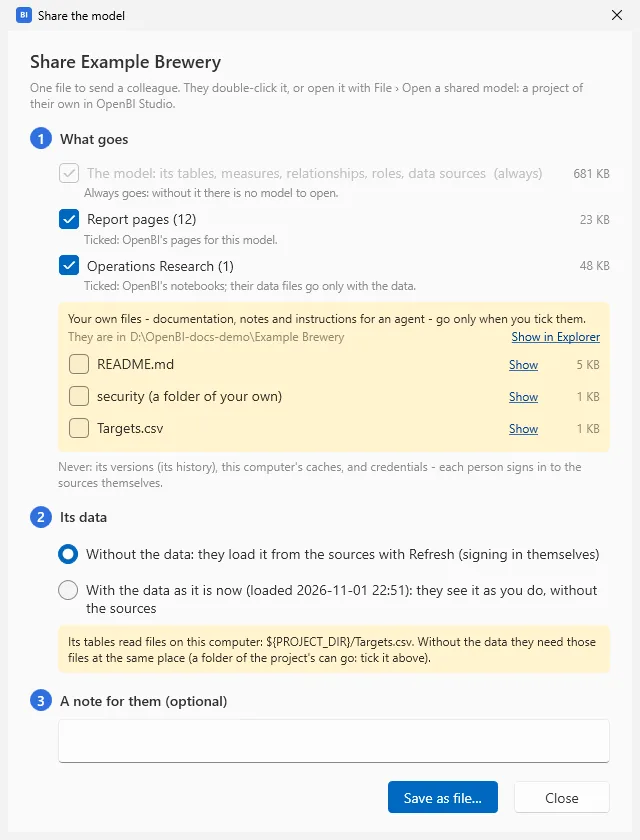
- What goes: the model always goes; its report pages and notebooks are ticked. Your own files, such as documentation, notes and instructions for an agent, go only when you tick them.
- Its data: Without the data, they load it from the sources with Refresh, signing in themselves; or With the data as it is now, they see it as you do, without the sources.
- A note for them, if you like, then Save as file….
The file is named <project> (shared <date>).openbimodel. Email it makes a mail draft with the file attached (Outlook on Windows, your mail app on a Mac); nothing is sent until you send it. A file over 20 MB is too big for most mail: share it through OneDrive, SharePoint or Teams instead.
Open a shared model
Double-click the .openbimodel file, or choose Open a shared model on the start page or in File. Choose where to put it: a folder of its own is made there, Documents\OpenBI to start with. It opens as a project of your own, with its first version “Shared by <who>”, and says who shared it, when, their note, and whether it came with its data. Without it, Refresh loads it from the sources.
Publish to OpenBI Server
Choose Home › Publish (or File › Publish…). Five steps:
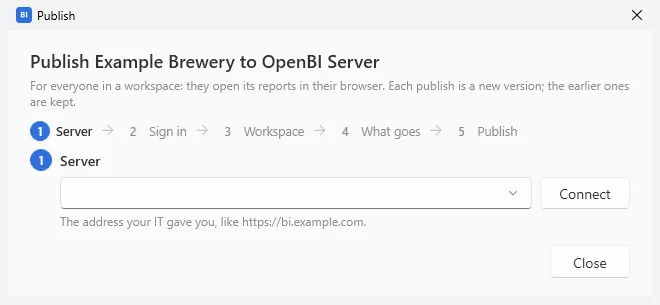
- Server: the address your IT gave you, such as https://bi.norwayanalytics.no, then Connect. The box offers the servers you published to, the latest first (ten), from whichever studio window published, and the workspace you last chose there.
- Sign in: Sign in in your browser. You sign in there, at your company’s sign-in page, and come back; the studio never sees your password. The sign-in is kept for you on this computer.
- Workspace: the workspaces you may publish to, with your role in each. Admins, Members and Contributors publish; the window says whether the project is new there or which version publishing makes.
- What goes: as for sharing, the pages, notebooks, your own files and whether the data goes; and what changed, kept with the version.
- Publish: Publish version N. Each publish is a new version; the earlier ones are kept on the server. Open in browser opens it there.
If some measures have no description, the window says so above the steps, with Describe them now, and asks once more as you press Publish: Describe them now, Publish anyway or Cancel. Sharing asks the same, with Share anyway. On the server, Viewers and their agents read a measure by its description, not its formula: see Describe your measures.
Who may open it, its refresh schedule and its data sources’ credentials are set on OpenBI Server.
Pages edited on the server
Report pages can also be edited in OpenBI Server’s browser editor. When the server has a newer version of what you published from this computer, a bar under the ribbon says who edited it and when, with Pull pages and Versions. Pull pages takes the server’s pages in place of the project’s, saving what you have as a version first; the model stays as it is. The studio looks when a project opens, when you come back to it, and every five minutes, quietly.
What stays on this computer
- Never sent: the project’s versions (its history), this computer’s caches and credentials. Each person signs in to the sources themselves.
- Hidden pages and plan review pages stay unless you tick them. A plan’s review page carries the plan’s numbers, which the model’s roles don’t protect, so whoever opens it sees them all. Share and Publish say which were left out.