Workspaces and roles
A workspace is a room of its own for a company, a department or a group: what is published there, and who may use it. Each person in it has one of four roles, as in the Power BI service: Admin, Member, Contributor or Viewer. Server administrators stand above them all.
What a workspace is
- Its items: the models and reports published to it from OpenBI Studio, each with its versions.
- Its people and their roles, given by e-mail address.
- One domain: each workspace belongs to one of the server’s licensed domains and opens only under that domain’s name, at bi.<domain>
/w/<workspace>. - Private: nobody sees a workspace they aren’t in. Its address answers as if it didn’t exist, and only its Admins see who is in it.
Create a workspace
Only server administrators create workspaces. In the portal: New workspace on Home, in the Workspaces flyout or in the admin portal. Give it a Name (checked as you type), a Description if you like, and its Domain when the server has several; then Create. You become its Admin.
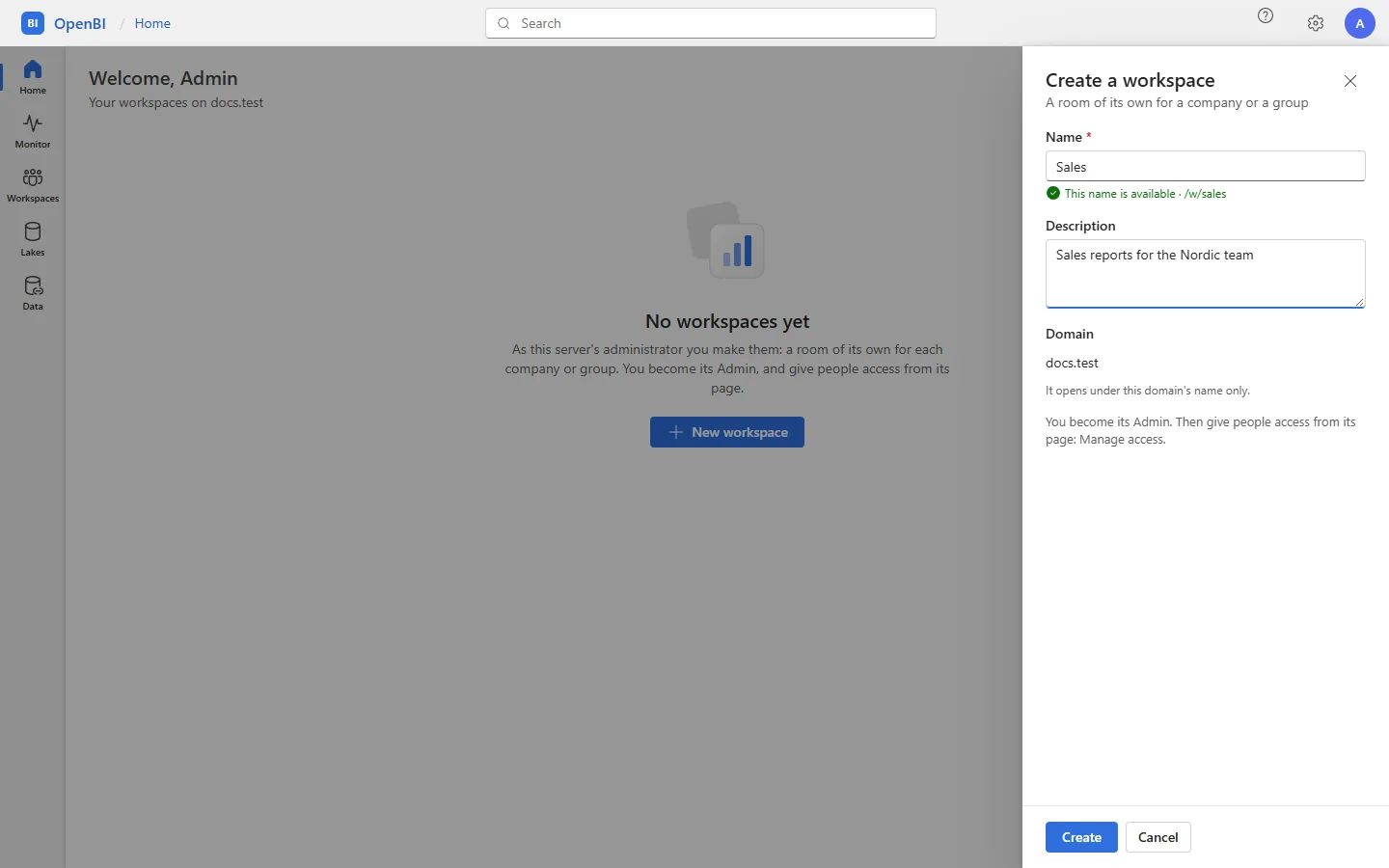
From the command line:
OpenBI.Server.exe workspace create --name "Sales" --domain norwayanalytics.no --description "Sales reports for the Nordic team"--domain is needed only when the server has more than one licensed domain.
Give people access
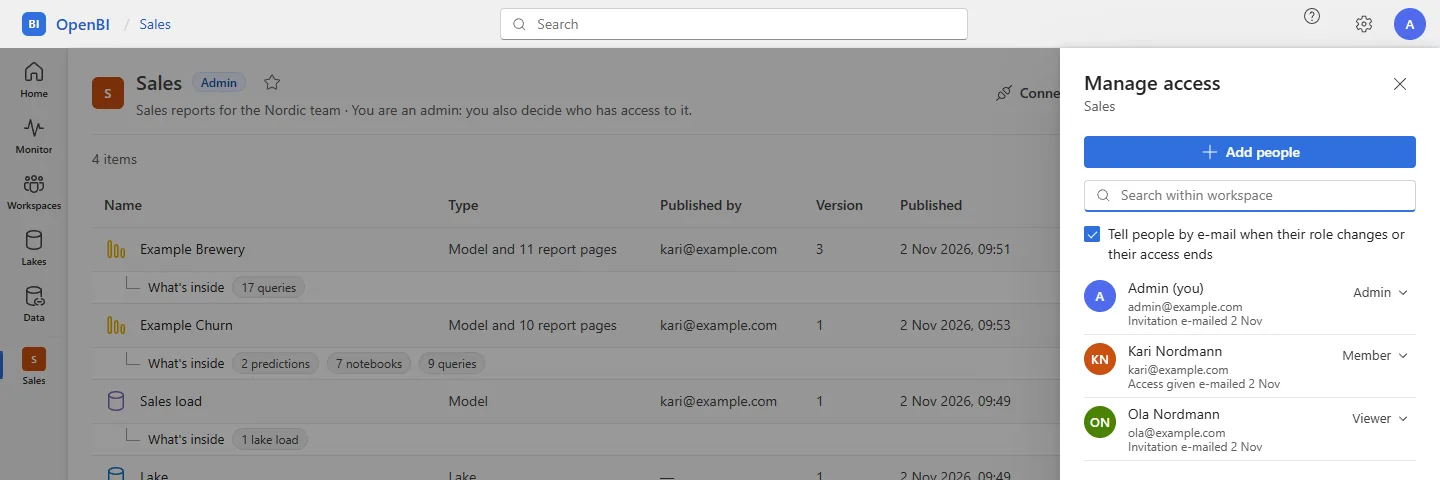
In the workspace, Manage access, then Add people:
- People: type a name or e-mail address. Someone new gets an invitation to set up their sign-in, naming the workspace.
- Role: the menu says what each lets them do.
- Notify by e-mail, ticked by default, then Add.
In Manage access, each person’s role can be changed or they can be removed. With Tell people by e-mail when their role changes or their access ends ticked, they hear of it. From the command line:
OpenBI.Server.exe workspace member add --workspace "Sales" --email kari@norwayanalytics.no --name "Kari Nordmann" --role member
OpenBI.Server.exe workspace member add --workspace "Sales" --email ola@norwayanalytics.no --role viewer
OpenBI.Server.exe workspace member remove --workspace "Sales" --email ola@norwayanalytics.no
OpenBI.Server.exe workspace show --workspace "Sales"
member add again, with another role, changes the role. --no-mail sends nothing. workspace show lists each person’s role and where their sign-in stands: invited (and until when the link works), set up, signed in, disabled.
Can see formulas
New in 0.1.43 A model’s formulas, the OAX of its measures and calculated columns and tables, are for those who may see them, as Power BI’s Build permission is. A workspace’s Contributors, Members and Admins and the server’s administrators have the right by their role. A Viewer has it when the workspace’s Admins give it: in Manage access, the Viewer’s More options (…), Can see formulas. The Viewer is then marked Sees formulas, and Stop showing formulas takes it away.
With it, the model the Viewer’s report pages read carries its formulas, and so do the answers of the AI agents they connect; Excel’s connection gets the measures’ formulas too. Without it, the measures still answer: only their formulas are left out. Each change is in the audit log. From the command line:
OpenBI.Server.exe formulas list --workspace "Sales"
OpenBI.Server.exe formulas grant --workspace "Sales" --email ola@norwayanalytics.no
OpenBI.Server.exe formulas revoke --workspace "Sales" --email ola@norwayanalytics.no
A Contributor or above already has it, so giving it to them is refused, saying so.
Someone’s e-mail address changed, or a whole company’s domain? They keep their workspaces and roles: see People’s e-mail addresses changed.
Import people from a file
Many people at once, with their workspaces and roles: in the Admin portal, Users, Import people. For server administrators.
- The file: CSV (UTF-8 or UTF-16, with “,” or “;” between the columns, as Norwegian Excel writes it) or Excel (.xlsx), at most 10 MB and 50,000 people. Its columns, by their heading:
email(needed),name,workspace(its name or address) androle(viewer,contributor,memberoradmin). With OpenBI Accounts, someone without a workspace is invited to sign in only; with your own sign-in provider, each needs a workspace. - First a preview: who is new, who is in already, role changes, and what is left out, with why: duplicates in the file, what isn’t an e-mail address, a workspace not found. People outside the server’s domains are pointed out, and invited all the same. It says how many seats it needs; with too few, Add seats is right there.
- Then Import: it runs as a job the server keeps, and goes on after a restart. Invitations go at most 25 a minute and 9,000 a day from the server’s mailbox, Exchange Online’s limits: 20,000 people take a little over 2 days. Invitations and workspace notices sent in other ways at the same time count towards that pace too, and the import waits for them, saying so. An invitation an administrator sends by hand is never held back by an import.
- Don’t e-mail gives people their access only, for those who sign in with your own sign-in provider.
The import’s start, pauses and end are in the audit log.
The roles
| Role | As the portal puts it | In short |
|---|---|---|
| Viewer | Opens its reports. | Reads reports and analyzes them in Excel; sees only the rows the model’s roles give them, and no formulas. |
| Contributor | Opens, publishes and updates its reports; downloads them. | Publishes from OpenBI Studio, edits report pages in the browser, refreshes now. |
| Member | Also sets a model’s data sources and refresh, sees the Monitor, and archives what is published. | Also looks after its models’ settings: data source credentials, refresh schedules, a live model’s Viewers, and the Monitor. |
| Admin | Also decides who has access, changes its settings and archives it. | Also manages access, the workspace’s settings and its own lake, and restores archived items. |
A workspace role says what someone may do with a workspace. What they see in a model’s data is the model’s own roles’ business, however they reach it: see Row-level security.
Who may do what
| What | Who |
|---|---|
| Open reports, export them to PDF, Analyze in Excel, set their own alerts, see an item’s versions (a Viewer opens the current one only), connect an AI agent where the workspace allows it | Everyone in the workspace |
| Publish, download a version, open older versions, edit report pages in the browser, Refresh now; see the model’s formulas | Contributors, Members, Admins |
| A model’s Settings: data source credentials, the refresh schedule and history, which of a live model’s Viewers see it; the Monitor | Members, Admins |
| Archive an item | Members, Admins |
| Restore an archived item | Admins |
| Manage access and Can see formulas for Viewers, Workspace settings (name, description, contacts, AI agents), archive the workspace | Admins |
| Weaken how a data source’s password travels; let every Viewer see everything a live connection sees | Admins |
| Create workspaces, restore an archived workspace, give a data source the server’s own Windows account, the admin portal and the audit log | Server administrators only |
Server administrators may also do everything in every workspace. Gateways have rules of their own: see Create the gateway on your server.
- The last Admin of a workspace stays its Admin until someone else is made Admin; only a server administrator can change that.
- A Viewer who tries to publish or edit is told it takes a Contributor, a Member or an Admin.
Server administrators
Server administrators see every workspace under the domain they opened the server at, marked when they aren’t a member, and in the admin portal every workspace of every domain on the server. Opening one they aren’t a member of is in the audit log, and the page says so. They use the admin portal, from Settings (the gear): Admin portal (every workspace: details, create, archive, restore), Users (invite, import, reset, disable, Excel passwords, administrators), Lakes, Gateways, Cluster, Audit log, and Server and license. In the admin portal they also find Overview (the seats and the plan), Billing (see Billing), AI agents, Access at a glance (everyone’s role in every workspace) and Server health: see The portal. Anyone else who opens an admin page gets “not found”.
OpenBI.Server.exe admin list
OpenBI.Server.exe admin add --email kari@norwayanalytics.no
OpenBI.Server.exe admin remove --email ola@norwayanalytics.no
In the portal: Users, a person’s … menu, Make server administrator or Remove server administrator. There is always at least one: the last can’t be removed.
Workspace settings and archiving
A workspace’s Admins open Workspace settings: its Name (its address stays as it was), Description, and Contacts, the addresses to e-mail about it, such as when a scheduled refresh fails.
New in 0.1.43 AI agents, in the same settings, lets the workspace’s people connect AI agents, such as Claude or ChatGPT, that read its models and reports as them: only what each person can see, their roles’ rows where a model has roles. What an agent reads goes to its provider. It is off until an Admin turns it on, takes effect at once, and works only while the server’s administrator has agents on for the server. See AI agents on the server.
Nothing is ever deleted. Archive this workspace closes it to everyone, its Admins too, and keeps everything published and its audit. Only a server administrator restores it: the admin portal, or:
OpenBI.Server.exe workspace restore --workspace "Sales"An item is archived the same way, from its … menu: hidden, taking no new version, every version kept. Its workspace’s Admins restore it under Archived items, at the bottom of the workspace’s page.
Groups
OpenBI Server 0.1.49 gives workspace roles to people one by one, by e-mail address, or many at once from a file (see Import people from a file); it has no groups of people for workspaces. A model’s own roles can use groups to decide what people see in its data: see Row-level security.
The audit log
Every change is in the audit log: who did it, what, when and in which workspace. Workspaces and people, publishing, refreshes, credentials (never a secret), opening a report (once an hour per person and item) and exporting one. Server administrators read it under Settings, Audit log, with filters, a keyword and Export CSV for Excel. Or:
OpenBI.Server.exe audit --workspace "Sales" --lines 200Frequently asked questions
Can a workspace be deleted?
No. It is archived and kept with its audit, so you can always show what a report showed on a given day.
Can workspace Admins create workspaces?
Not in 0.1.49: only server administrators create them. They then make whoever runs it its Admin.
Who can see who is in a workspace?
Its Admins and the server’s administrators. Nobody else sees the list.