Transform data
Transform data opens Open Query, OpenBI’s query editor. It shapes a table before it lands in the model: remove and rename columns, filter rows, change types, group, unpivot, merge and append. Each change is a step, written in M as Power Query writes it, and Open Query runs it.
Open it
- Home › Transform data opens the table selected in the Tables view.
- In Get data’s Navigator, Transform data instead of Load.
- In the Refresh window, Edit query on a table that failed.
New in 0.3.75 The window is called Open Query, OpenBI’s own name for its query editor and the engine that runs its queries. The ribbon’s button keeps Power BI’s name, Transform data, and nothing else changed: the queries, their M and the project’s files are as before.
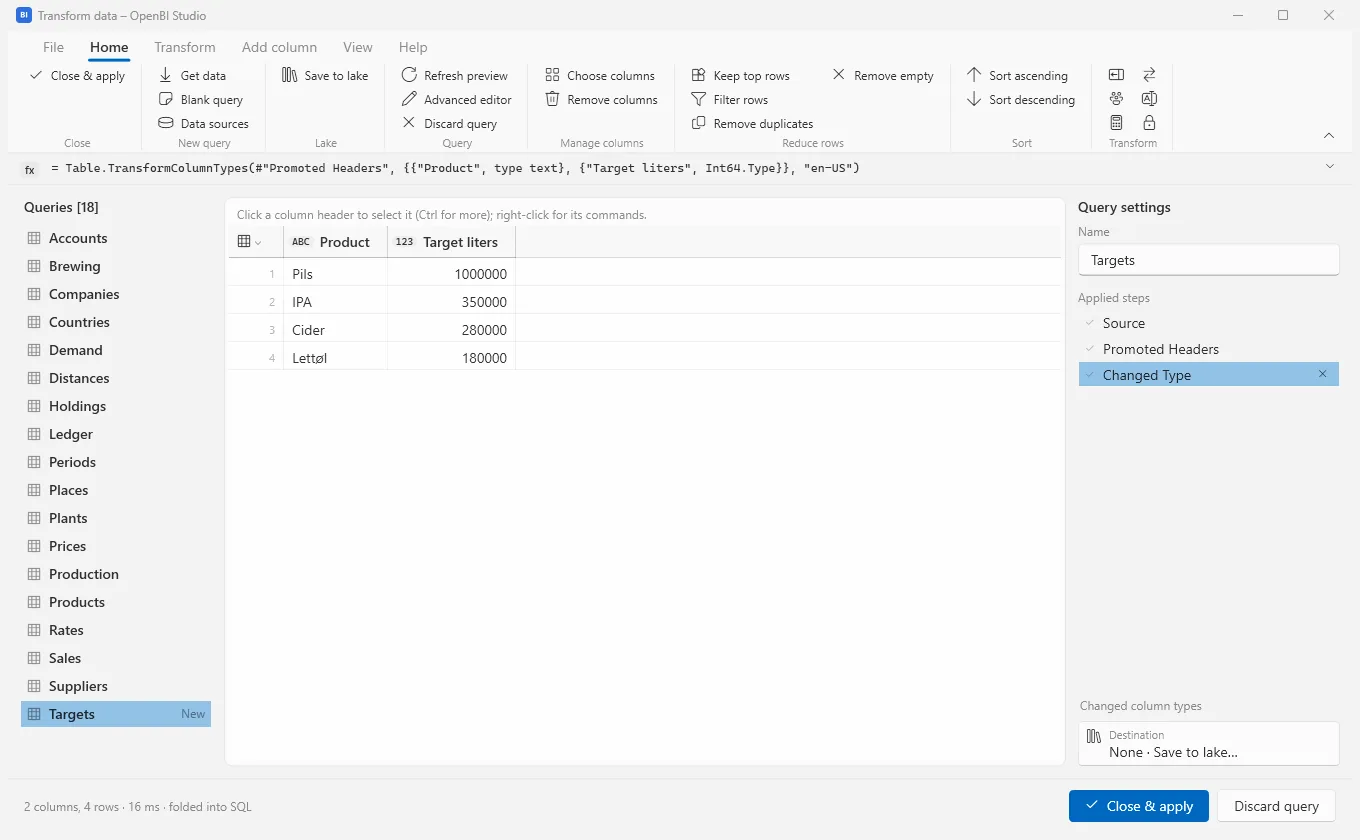
The window
- Ribbon
- File, Home, Transform, Add column, View and Help, as in Power Query.
- Formula bar
- The selected step’s M. Edit it and press Enter (Shift+Enter for a new line, Esc to undo). It reads fx for M and SQL for a DuckDB SQL query.
- Queries
- Every query of the model, in its groups, each marked New, Changed, Not loaded or Error. Right-click one to rename, duplicate, reference, move it to a group, turn its load or its report refresh off, make it a function or a parameter.
- Preview
- The query’s first 1,000 rows at the selected step. Click a column’s header to select it (Ctrl for more) and right-click it for its commands; the button above the row numbers has the table’s. View › Column profile shows each column’s empty share and distinct values.
- Query settings
- The query’s Name (renaming it renames the table, and its measures, relationships, report pages and other queries follow), its Applied steps and its Destination. Click a step to see the data there; double-click to rename it; the cross removes it.
The steps you can add
| Where | Steps |
|---|---|
| Home | Choose columns, Remove columns, Keep top rows, Filter rows, Remove duplicates, Remove empty, Sort ascending, Sort descending, Split column, Group by, Data type, Replace values, Rename, Anonymize |
| Transform | Unpivot columns, Unpivot other columns, Replace empty, Move, Format (Trim, UPPERCASE, lowercase), Custom step |
| Add column | Custom column, Duplicate column, Score (a prediction’s scores for each row, see Prediction) |
| The table’s menu | Use first row as headers, Add column from examples…, Add conditional column…, Add index column, Invoke custom function…, keep or remove top, bottom, alternate rows, duplicates and errors, Merge queries…, Append queries… |
Add column from examples… takes a few values you type in a new column and finds the simplest formula that gives them. Anonymize replaces what is personal in a column before it reaches the model: you say what is personal, how it is found and what replaces it, a salted hash for example.
Types, filters and the locale
New in 0.3.79 A step that changes a type or reads text names no locale, as Power Query writes it: Get data’s Changed Type, its types detected in the project’s locale for import, and every Data type step read in it too (see Culture and Locale for import). A value that doesn’t convert is an error in its cell. For a file written in another locale, Using locale… (under Data type on Home, and in a column’s Change type) changes the type with the text read in a locale you choose: the step Changed Type with Locale, Table.TransformColumnTypes(…, "en-GB"), as in Power Query. It is for M queries; a SQL query has no locale.
Filters are those of the column’s type, as Power Query’s: on text, equals, does not equal, begins with, ends with and contains; on numbers, the comparisons; on dates and times, is, is not, after, on or after, before and on or before; and empty or not empty on any column. A text filter on a number or a date is refused, saying what to do instead. Steps saved by an earlier OpenBI Studio keep their M and run as they are.
M, and DuckDB SQL
New queries are M, Open Query’s language, compatible with Power Query’s M. To write one yourself, or paste one from Power BI Desktop’s Advanced editor, choose Home › Blank query. Advanced editor shows a whole query: let, its steps, in and what it gives.
A query can also be DuckDB SQL, each step a part of one SQL statement. The tables of Example Brewery are, for instance: their formula bar reads SQL, and the custom step is a SQL step. A command that only M has asks first whether to make it an M query: its SQL becomes the first step, read with DuckDB, and the new steps are M.
In a Power BI project kept working in Power BI, every query stays M, as Power BI runs it (see Import from Power BI).
New in 0.3.75 Fuzzy matching: Table.FuzzyJoin, Table.FuzzyNestedJoin, Table.FuzzyGroup and Table.AddFuzzyClusterColumn join, group and clean texts that are spelled alike rather than the same, such as company names, with the similarities Power BI Desktop gives. Write them in the formula bar or the Advanced editor; M does them, never folded into SQL. A few pairs close to the threshold can come out otherwise than in Desktop: see Fuzzy matching.
Folding
OpenBI folds a query’s steps into one SQL statement that DuckDB, or the database, runs; what it can’t fold, M does itself. The line at the bottom says which: folded into SQL or done by M. Right-click a step and choose View native query to see the SQL that runs for the steps up to there.
A filter against a value that is the same for every row folds too, with the value worked out once: Power Query’s own each [Ship date] <= #date(1998, 9, 2) on a Parquet file or a lake table goes to DuckDB with the date as a literal (from OpenBI Studio 0.3.72; before, such a filter ran row by row in M, slowly and with much memory). #date, #datetime, #time, #duration and other functions of constants fold this way; what changes from row to row or with the clock, such as DateTime.LocalNow(), stays with M.
Query dependencies
View › Query dependencies draws every query, the data sources it reads and the queries it uses, as Power Query does. Click a box to see what it uses and what uses it; Layout turns the diagram (top to bottom, left to right…) and Fit fits it to the window.
Close & apply
- Close & apply writes every open query’s table into the model and loads its data. A query with an error is refused until you fix or remove the failing step.
- Discard query closes the selected query without applying it: a new one is dropped, a changed one goes back to the model’s.
- Closing the window with changes asks Apply the changes to the queries?
- An agent’s apply is the same Close & apply: you see the button pressed and the apply in the window’s status bar, and the window closes when nothing else is left to apply (see You see every change).
- Save to lake, or the Destination under the steps, writes the query’s rows into a lake table each time a lake load runs: see OpenBI Lake.