Import from Power BI
OpenBI reads Power BI’s models as they are: their tables and Power Query, measures, relationships, roles and calculation groups. Import one as a new OpenBI project, or open a Power BI project and keep it working in Power BI Desktop.
Import a model
Choose Import from Power BI on the start page, on the Home tab, or in File. The window makes a new OpenBI project from the model; the Power BI file stays as it is.
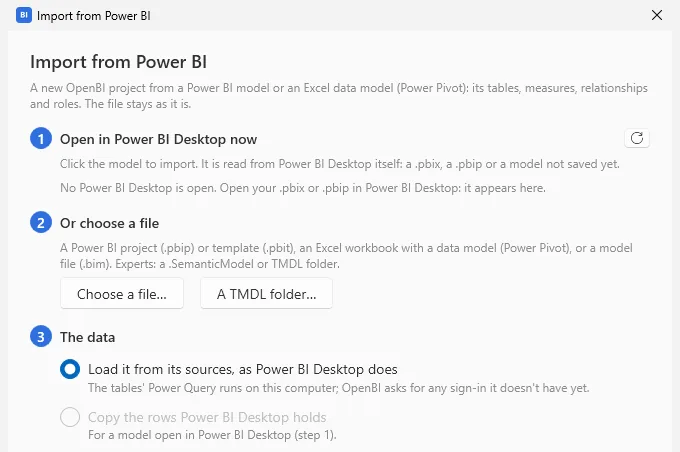
- Open in Power BI Desktop now: every Power BI Desktop open on this computer is listed, with its model. Click the one to import. It is read from Power BI Desktop itself, so a
.pbix, a.pbipor a model not saved yet all work, with nothing to export. - Or choose a file: a Power BI project (
.pbip) or template (.pbit), an Excel workbook with a data model (Power Pivot), or a model file (.bim). A TMDL folder… takes a.SemanticModelfolder, or a folder withmodel.tmdl. - The data: see below. Then give the Project name, check the Folder (
Documents\OpenBIto start with), and choose Import.
A .pbix keeps its model inside Power BI’s own file, which Power BI Desktop reads. Chosen as a file, it offers Open it in Power BI Desktop; once open, it appears in the list above.
The data
- Load it from its sources, as Power BI Desktop does
- The tables’ Power Query runs on this computer, in OpenBI, and OpenBI asks for any sign-in it doesn’t have yet.
- Copy the rows Power BI Desktop holds
- For a model open in Power BI Desktop: a snapshot of its rows as Desktop holds them now, nothing read from the sources. Refresh reads them from Power BI Desktop again while it has the model open. Useful when the sources can’t be reached from here; to load from the sources later, import the model again with its sources.
What comes along
- Comes: tables and columns, measures, relationships, hierarchies, roles, calculation groups, perspectives and translations. Tables that load with Power Query keep their M, and OpenBI runs it. Measures, calculated columns and row filters keep their DAX as written: OAX, OpenBI’s expression language, is compatible with DAX (see OAX and DAX).
- Doesn’t: the Power BI report’s pages. The summary says how many, and an agent working in the studio can rebuild them as OpenBI report pages, each visual where it was. From an Excel workbook, its sheets, PivotTables and charts stay in Excel.
When it is done, the window says what came: “Sales: 12 tables, 48 measures, 11 relationships, 2 roles”, where each table loads from, and how many load with Power Query. The project is saved as its first version.
When tables don’t load
The summary names the tables that didn’t load, why, and what to do: sign in (Home › Data sources, Sign in), install a driver the message names, or reach a server. Under Load them another way: Copy the rows from Power BI Desktop, or point the source at another server.
Open a Power BI project
Opening a folder with a .pbip the first time asks how you want to work on it:
- Keep it working in Power BI
- Open it as it is. What you change stays something Power BI Desktop opens: tables load with Power Query (M), and data source settings stay on this computer, as Power BI keeps them. The Power BI report is left as it is; OpenBI’s report pages sit beside it.
- Make it an OpenBI project
- A new OpenBI project with a copy of the model; the Power BI project stays as it is. The copy can use everything in OpenBI, and Power BI doesn’t open it.
In a project kept working in Power BI, measures, calculated columns, relationships, roles, formats and descriptions are all fine. What only OpenBI has is refused, with why: a DuckDB SQL query, OpenBI’s own M functions (such as Privacy.Anonymize, Image.Colors or OpenBI.Lake), and reading a lake. To use them, make it an OpenBI project.
On a Mac
Power BI Desktop runs on Windows only, so a Mac has no list of open Desktops: choose a file. A .pbix keeps its model inside Power BI’s own file: save it in Power BI Desktop as a Power BI project (.pbip) and choose that, or import it with OpenBI Studio on Windows.