Connect your AI agent to OpenBI Server
A guide to connecting Claude, ChatGPT or Claude Code to your company’s OpenBI Server, so your agent can answer questions with your reports’ numbers. It acts as you, sees only what you can see, and changes nothing.
To give an agent OpenBI Studio on your own computer instead, see Connect your agent. Server administrators: the full reference is AI agents on the server.
What it does, and what it doesn’t
- It reads as you. Your agent works with your access at that moment: your workspaces, your role in each, and where a model has roles, only your roles’ rows. Rows and columns your roles hide stay hidden, whatever the agent asks.
- Only where agents are allowed. It sees only workspaces whose Admins allow AI agents. Of your other workspaces it learns only how many there are, never their names.
- It changes nothing. Its tools only read: models, measures, report pages and what their visuals show, how fresh the data is, your own data alerts, and queries of its own. No edits, refreshes, publishing or sharing.
- It never gets passwords or credentials, data sources’ addresses, other people’s e-mail addresses or who is in a workspace, the audit log, or a formula you can’t see yourself (see Can see formulas).
- What it reads goes to the app’s provider, such as Anthropic for Claude or OpenAI for ChatGPT, under your own (or your company’s) agreement with them. The permission page names the provider before you allow.
- Every call is audited: your server’s audit log records each one, with your name and the app’s.
Every measure comes to the agent with its card: its description, or that it has none, its format and unit, its folder and what slices it. When a measure of the model gives a number, the agent is told to use it and name it, so its answer is the number your reports show.
For your server’s administrator
AI agents are off until two people turn them on: until the server’s switch is on, an app finds nothing to connect to, and until a workspace allows agents, the agent sees nothing of it.
- The server: a server administrator turns on Let people connect AI agents in the Admin portal, on its AI agents page, or runs
OpenBI.Server.exe mcp on(on a Mac,sudo openbi-server mcp on).mcp statusthen shows the address each domain’s agents connect to: the server’s address with/mcpafter it. - Each workspace: its Admins open the workspace’s settings and, under AI agents, turn on the switch Allow AI agents in this workspace.
Two more choices are theirs: whether agents may run queries of their own (mcp own-dax; the modes are explained in An agent’s own OAX queries), and which Viewers can see formulas.
Before you start
- The address: in the portal, open your account menu, top right, then Connected apps. Once agents are on, the address is there under Connect an AI agent, with Copy: such as https://bi.norwayanalytics.no/mcp; the help menu’s Connect your agent gives it too. The same page has a short version of each app’s steps; this guide is the long one.
- Your sign-in: your OpenBI password and your authenticator app. Agents connect only to servers that sign people in with OpenBI Accounts.
- Reachable from where the app runs. Claude on the web and ChatGPT call your server from their providers’ clouds, so they reach it only when its address is reachable from the internet. Claude Code runs on your computer and reaches the server wherever your computer does.
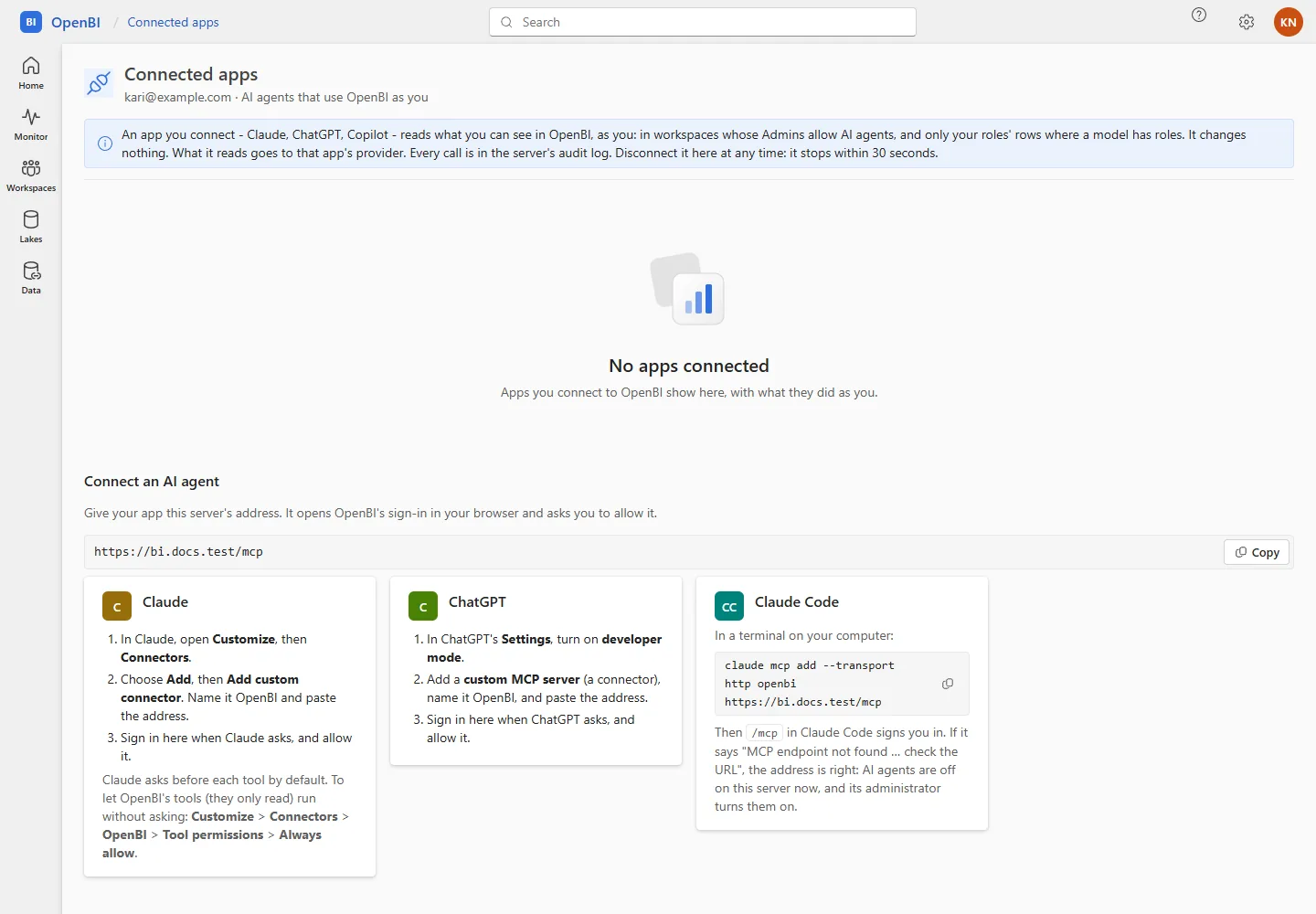
Connect Claude (claude.ai)
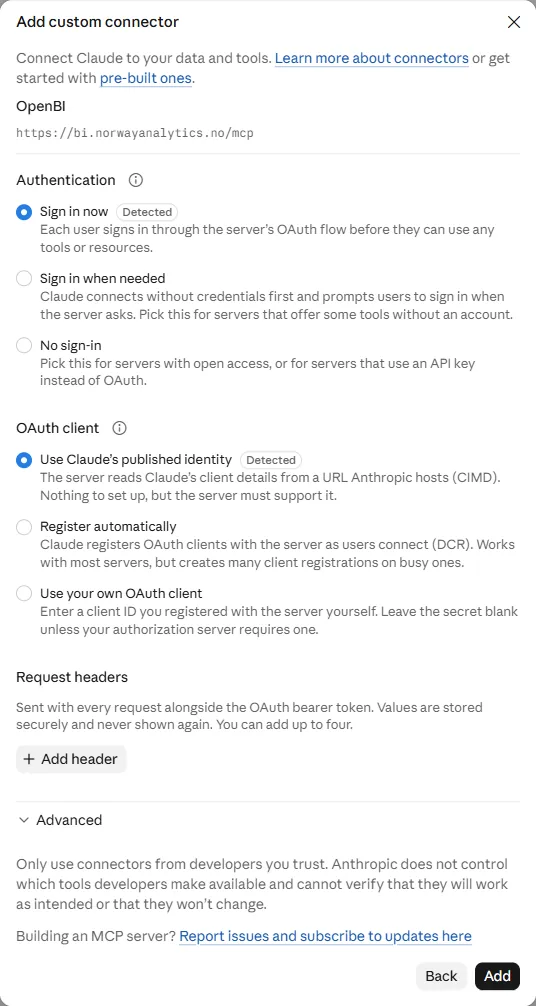
- In Claude, open Customize, then Connectors, Add, Add custom connector. (Settings › Connectors now says the connectors have moved to Customize.)
- Name it
OpenBI, paste the address, and choose Continue. - Step 2 of 2 shows Authentication: Sign in now (Detected) and OAuth client: Use Claude’s published identity (Detected). Keep both: that is how OpenBI recognises Claude, and its permission page will say Verified: its address is claude.ai.
- Sign in to OpenBI and allow it, as in Sign in and allow. Your browser then goes back to claude.ai.
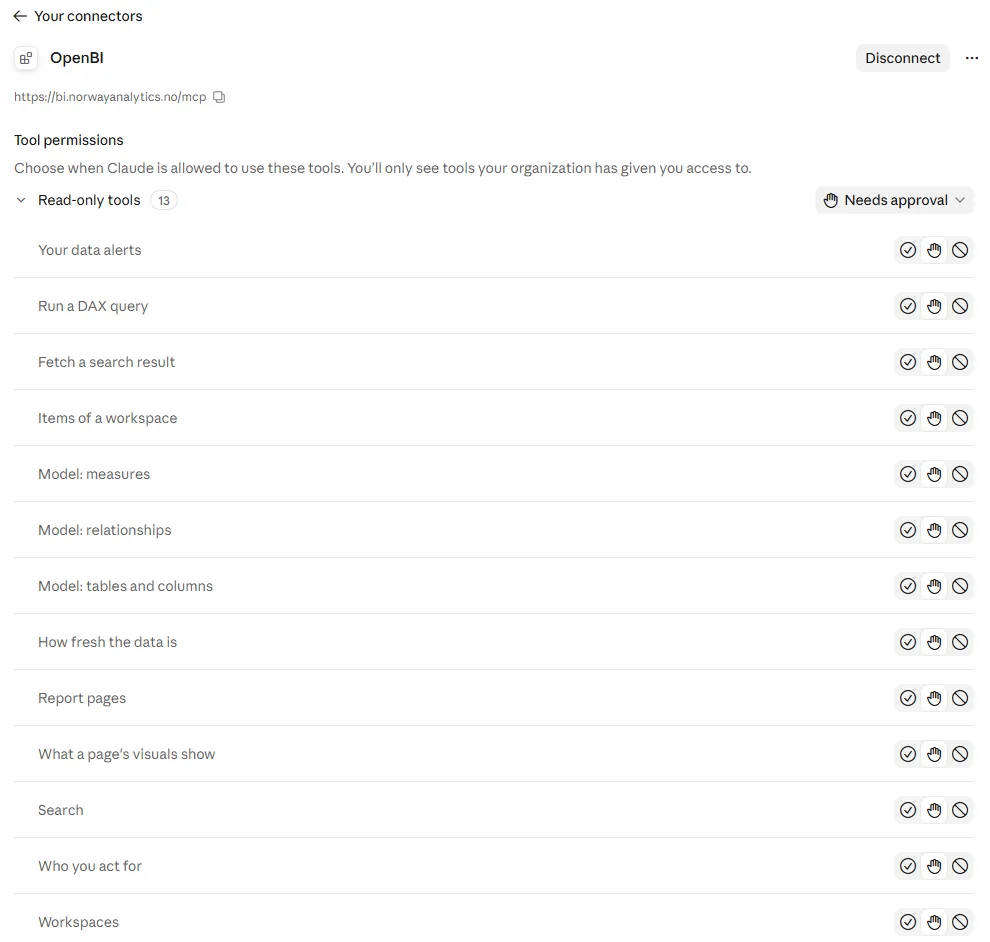
- Claude lists OpenBI’s 13 tools, all read only, under Needs approval: by default it asks you before each call. To stop it asking, open Customize › Connectors › OpenBI › Tool permissions and choose Always allow.
Connect ChatGPT
To confirm The steps below follow ChatGPT’s connectors as OpenBI’s portal describes them; they are being checked with ChatGPT itself.
- In ChatGPT’s Settings, turn on developer mode.
- Add a custom MCP server (a connector): name it
OpenBI, paste the address, and choose OAuth as its sign-in. - Sign in to OpenBI and allow it, as in Sign in and allow.
Connect Claude Code
To confirm In a terminal on your computer, with your server’s address:
claude mcp add --transport http openbi https://<server>/mcpThen, in Claude Code, type /mcp, choose openbi and Authenticate. Your browser opens OpenBI’s sign-in: sign in and allow it, as in Sign in and allow, and come back to Claude Code.
Sign in and allow
Every app sends you to OpenBI’s own sign-in, in your browser. The app never sees your password.
- Sign in as always, with your password and your authenticator’s code. Signed in already, you go straight on.
- Confirm it’s you: when your last full sign-in was more than 15 minutes ago, a new connection asks for your authenticator’s code (or a recovery code) once more, because the connection lets the app read your data until you disconnect it.
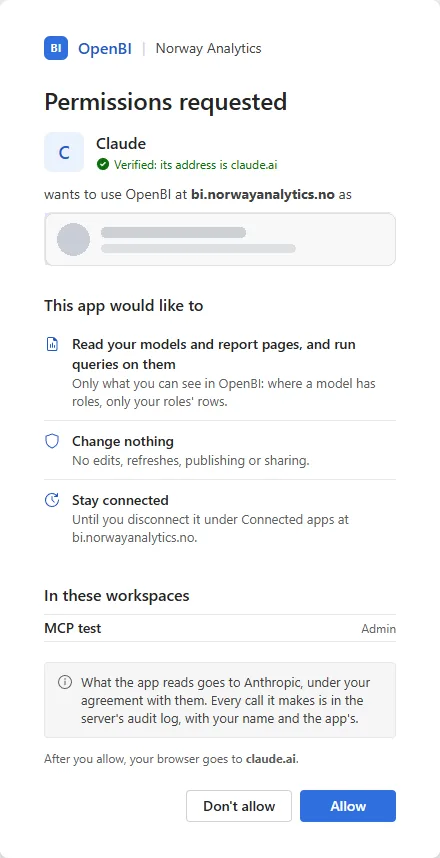
- Permissions requested says who wants what, for example: Claude · Verified: its address is claude.ai · wants to use OpenBI at <server> as <you>, then:
- Read your models and report pages, and run queries on them: only what you can see in OpenBI; where a model has roles, only your roles’ rows;
- Change nothing;
- Stay connected, when the app asks to: until you disconnect it under Connected apps;
- In these workspaces: the ones that allow agents;
- What the app reads goes to its provider, under your agreement with them, and After you allow, your browser goes to the app.
- Choose Allow, or Don’t allow.
How OpenBI knows the app:
- Verified: its address is … The app came by its own published address, which your server’s administrator allows.
- Registered by your OpenBI administrator.
- Unverified: the app gave itself this name. Any app could call itself Claude: allow it only if you just asked your app to connect.
An app you connected before asks with one click: Continue to <app>? If you didn’t just ask for it, choose Cancel.
Your first question
Ask your agent:
Who am I connected as, which workspaces can you see, and what's in them?It answers with the tools whoami, workspaces and items: you, the server, and the reports in the workspaces that allow agents. Then ask about your numbers, such as “Which shops sold the most liters?”: the agent finds the model’s measures and uses them, and says which, so its numbers are your reports’.
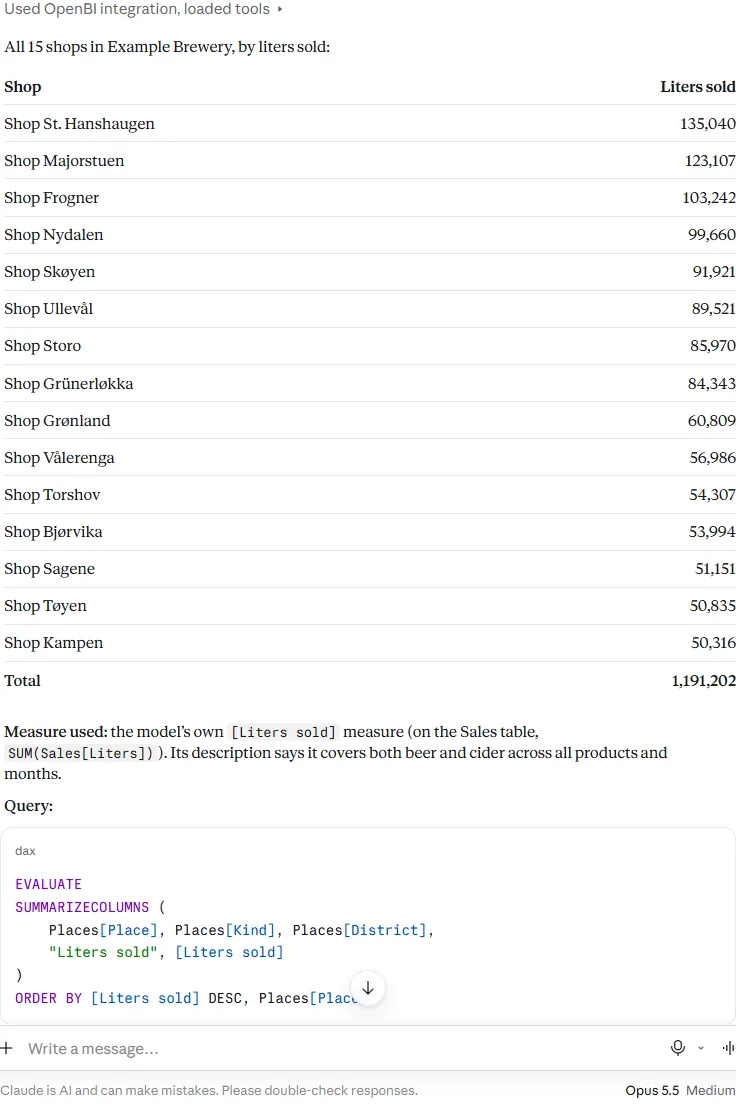
[Liters sold] measure, which it names, with the query it ran.Can see formulas
A measure’s formula, its OAX, is for people who may see it, as Power BI’s Build permission is:
- By their role: a workspace’s Contributors, Members and Admins, and the server’s administrators.
- Viewers when the workspace’s Admins give it: Manage access, the Viewer’s More options (…), Can see formulas. The Viewer is then marked Sees formulas; Stop showing formulas takes it away. Each change is in the audit log.
It decides whether your agent gets the OAX of measures and calculated columns, whether the model your report pages read carries it, and whether Excel’s connection gets the measures’ formulas. Without it, you and your agent get each measure’s card, not its formula; the measures still answer. A Viewer’s agent also reads a report’s current version only. See Can see formulas in Workspaces and roles.
Connected apps and Disconnect
In the portal, your account menu, then Connected apps (also under Settings, Your account). Each app you connected shows how OpenBI knows it, when you connected it, when it was last used, its calls in the last 7 days, and its last calls under Its last calls.
Disconnect ends the app’s connection within 30 seconds: its next call is refused, and connecting it again asks for your permission again. Your apps are also disconnected when your sign-in is reset, your account is disabled, or your password is reset or changed. Your server’s administrator can disconnect or block any app.
When it doesn’t work
| What you see | What it means, and what to do |
|---|---|
| The app can’t find the server’s MCP endpoint (“not found”) | AI agents aren’t turned on for the server, or the address is wrong. Check the address in Connected apps; if it says AI agents are off, ask your server’s administrator. |
| Connected apps says “AI agents are off on this server: its administrator turns them on.” | Ask your server’s administrator. |
| The agent lists no workspaces | None of your workspaces allows agents: its Admins turn on AI agents in its settings. |
| The agent says a workspace isn’t there, though you see it in the portal | That workspace doesn’t allow agents: to an agent, it is the same as a workspace that doesn’t exist. Ask its Admins. |
| “This OpenBI server’s administrator has turned AI agents off. The connection is kept” | AI agents are off on the server for now. Nothing to do: your connection works again once they are turned on, without connecting again. |
| “This app’s address is not on the server’s list of allowed clients any more” | Your server doesn’t allow that app: its administrator allows it (mcp allow, see Which apps may connect). |
| You’re asked for your authenticator’s code again | Expected for a new connection when your last full sign-in was more than 15 minutes ago. |
| “Authentication required” after it worked | The connection was ended: disconnected under Connected apps, your password changed, or your administrator disconnected it. Connect again. |
no_roles | You’re in none of the model’s roles: ask an Admin of the workspace. |
version_refused | Ask about the current version. |
dax_paused | Your server doesn’t run agents’ own queries: ask the agent to use the model’s measures and report pages instead. |
rate_limited or busy | The agent asked too much at once: it waits and asks again. |