Excel connections
Analyze in Excel, as in the Power BI service: a PivotTable on a published model, connected to your server, with each person’s own access. Excel signs in with an Excel password, because it can’t use an authenticator app.
Who may
Everyone with access to the workspace, Viewers too. Each person sees in Excel what they see in the model’s reports: all of it for the workspace’s Contributors, Members and Admins and the server’s administrators; for its Viewers, the rows and columns their roles allow, and the measures without their OAX, OpenBI’s DAX-compatible formulas, unless the workspace’s Admins gave them Can see formulas (see also Row-level security).
A live model, on Analysis Services or the Power BI service, is Excel’s to reach on its own server: the dialog says so, naming that server, instead of offering a workbook.
Analyze in Excel
Open it from the item’s … menu in its workspace (Analyze in Excel), or in a report from Export › Analyze in Excel. A dialog takes the person through three steps:
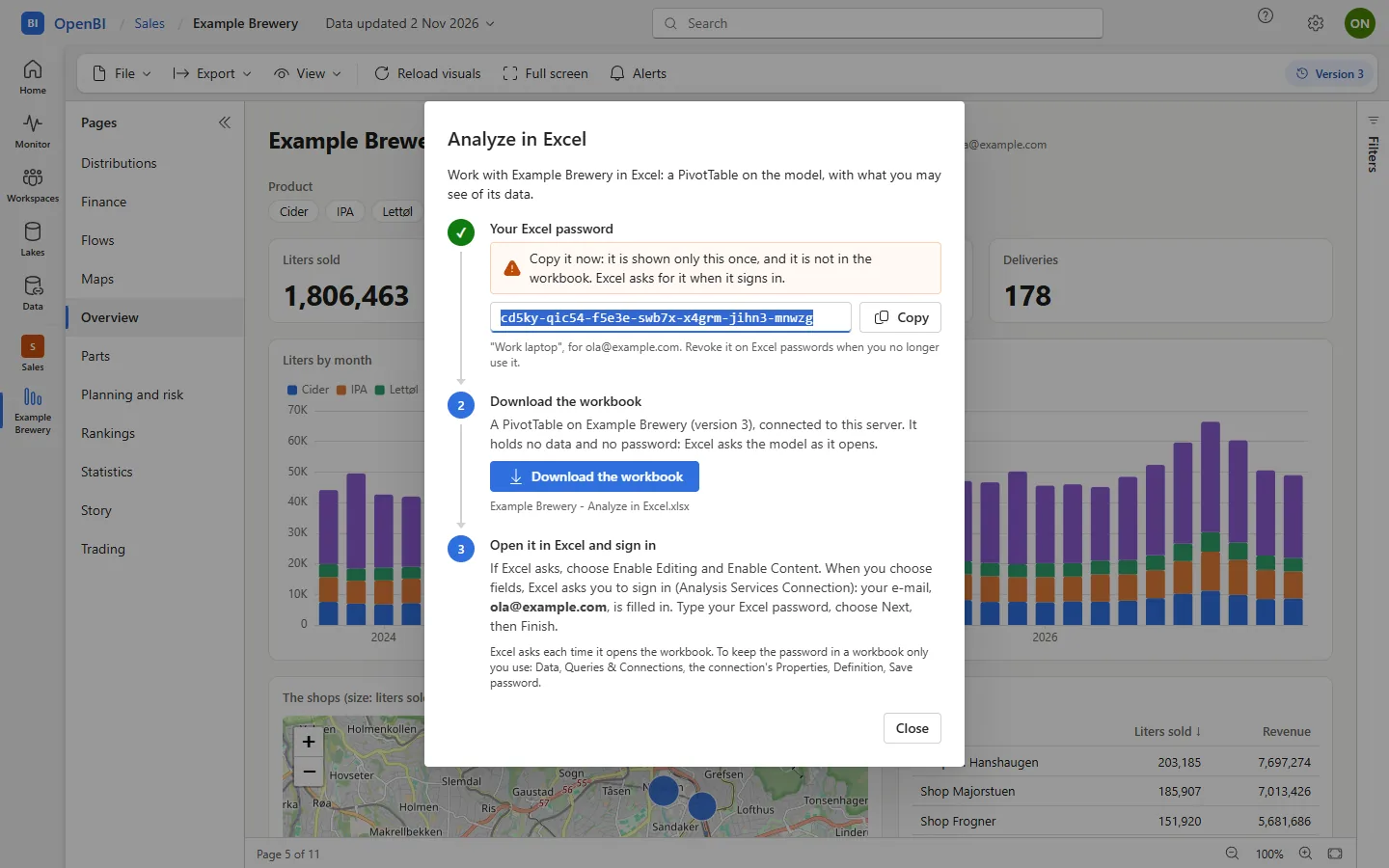
- Your Excel password. Someone with none makes one here: they may name it, then see it once, with Copy. Someone with one uses it, or makes a new one if it is lost.
- Download the workbook. A workbook with a PivotTable on the model’s current version, connected to this server.
- Open it in Excel and sign in. If Excel asks, choose Enable Editing and Enable Content. When fields are chosen, Excel’s own Analysis Services Connection window asks to sign in, with the person’s e-mail filled in: type the Excel password, then Next and Finish.
Excel asks for the password each time it opens the workbook. To keep it in a workbook only you use: in Excel, Data, Queries & Connections, the connection’s Properties, Definition, Save password. The workbook then holds the password.
The workbook
<item> - Analyze in Excel.xlsx is made for the person who downloads it. It holds no data and no password: a PivotTable connected to the model, and the model’s tables, columns and measures as that person sees them. It refreshes as it opens, so Excel opens on the PivotTable Fields pane. Its connection names your server and the person:
Provider=MSOLAP;Data Source=https://bi.norwayanalytics.no/xmla/<workspace>/<item>;Initial Catalog=<model>;Persist Security Info=True;User ID=<their e-mail>It always asks the item’s current version, on its newest data. It is made for one person, whose e-mail is in its connection: someone else downloads their own.
The same address, https://bi.norwayanalytics.no/xmla/<workspace>/<item>, is in the workspace’s Connect, with Copy, for whoever connects Excel themselves (Data, Get Data, From Database, From Analysis Services): see The portal.
Excel passwords
An Excel password is like an app password elsewhere: personal, for Excel only, and revocable. Excel’s Analysis Services provider can’t do the browser’s sign-in with an authenticator code, so it signs in with the person’s e-mail and an Excel password instead.
- Made by each person, in Analyze in Excel’s dialog, or under Settings or their account menu, Excel passwords (Home’s Connect Excel opens it too). Make one for each computer Excel is used on.
- Strong and shown once: 35 random characters in groups of five, shown once with Copy. A person may have 10 at most that aren’t revoked.
- Never kept: the server keeps only each password’s SHA-256, its name, its first four characters, when it was made and when it was last used.
- Revoked by the person on their Excel passwords page, one at a time. A server administrator revokes all of someone’s at once: in the Admin portal, Users, Revoke Excel passwords (a lost laptop, someone who left). Reset sign-in revokes them too.
Every Excel password made or revoked is in the audit log, never its secret. On the server:
OpenBI.Server.exe excel-passwords list --email <e-mail>
OpenBI.Server.exe excel-passwords revoke --email <e-mail>
list without --email lists everyone’s that aren’t revoked: whose, its name, its first characters, when it was made and last used, never the secret. revoke revokes all of that person’s at once.
For IT
What people need
Excel for Windows, which has Microsoft’s Analysis Services provider (MSOLAP) that the workbook connects with, and HTTPS access to bi.<your domain>. Nothing else is installed.
Excel’s door
Excel talks to https://bi.<your domain>/xmla/<workspace>/<item> with HTTP Basic sign-in, never the portal’s cookie. Each request:
- checks the Excel password, and that the person may still sign in: someone disabled at OpenBI Accounts, or whose sign-in was reset, is refused within 30 seconds;
- checks their access to the item at that moment: taken out of the workspace, or the item archived, and it is as if it didn’t exist;
- goes to the engine of the item’s current version, as that person, with their roles.
Requests from a web browser are refused, so no other site can make a browser send the credentials it keeps. Wrong passwords are slowed down: after 10 a minute from one address, or for one e-mail, the next waits. A request may be 16 MB at most. Excel on an item is in the audit log once an hour per person, naming the Excel password used.
IIS and HTTPS
- HTTPS only. Basic sign-in sends the password with every request: plain
http://is only for a test on the server itself, bylocalhostor127.0.0.1: by any other name the server tells Excel to usehttps://. - Leave IIS’s authentication as
iis setupsets it: anonymous authentication only. Basic or Windows authentication on the site would take Excel’s sign-in for itself.
With your own sign-in provider
With Microsoft Entra ID, Okta or another provider instead of OpenBI Accounts, the server can’t see that someone was disabled there: their Excel passwords stop when their workspace access ends, or when a server administrator revokes them. Revoke them when someone leaves.
Frequently asked questions
I lost my Excel password. Now what?
Make a new one: in Analyze in Excel’s dialog, or on your Excel passwords page. Revoke the old one there if it may be somewhere it shouldn’t be.
Why does Excel ask for the password every time?
It asks each time it opens the workbook, unless the connection’s Save password is set (see Analyze in Excel). Set it only in a workbook only you use.
Can I analyze an older version?
No: the workbook always asks the item’s current version. Older versions open read only in the browser.