Roles
Roles decide what people see: a row filter in OAX per table, and tables and columns hidden from the role. The Security view writes the roles into the model, keeps who has them in the project, and shows the model as any role or person sees it.
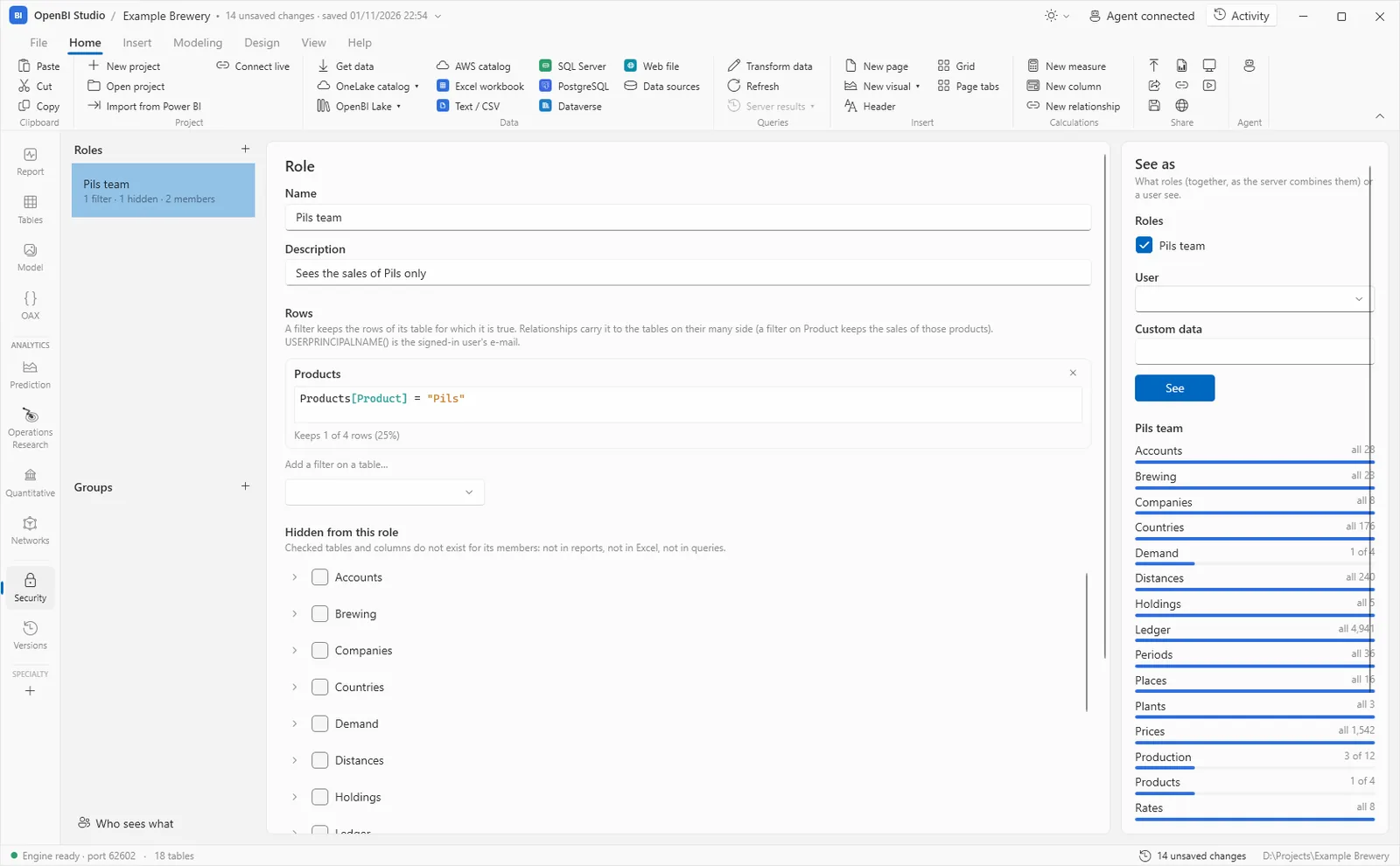
Choose Security on the left, or Modeling › Manage roles. The roles and groups are listed on the left, the one you select is edited in the middle, and See as is on the right.
Make a role
Choose + beside Roles (or Modeling › New role). The role is made at once as “New role”, its name selected to type over. Give it a Name and a Description, set what follows, and choose Save. Delete role removes it, and its members lose what it gave them.
Roles are part of the model, in its TMDL, as in Power BI. A filter that doesn’t run isn’t saved: the error says which and why.
Row filters
Under Rows, choose a table in Add a filter on a table… and write an OAX condition. The role sees the rows of that table for which it is true, and relationships carry the filter to the tables on their many side: a filter on Products keeps the sales of those products. OAX is compatible with DAX, so the row filters of a model from Power BI work here as they are.
Products[Product] = "Pils"As you type, the card says how many rows it keeps (“Keeps 1 of 4 rows (25%)”). For a filter per person, USERPRINCIPALNAME() is the signed-in user’s e-mail; name a user under See as to check it for them.
'Sales people'[E-mail] = USERPRINCIPALNAME()Hidden from the role
Under Hidden from this role, tick tables and columns. For the role’s members they don’t exist: not in reports, not in Excel, not in queries.
Members and groups
Under Members, add who has the role: an e-mail address, or a group. A group (+ beside Groups, or Modeling › New group) has members, e-mails and other groups, and E-mail domains: everyone signing in with an address of the domain, such as norwayanalytics.no, is in the group. Under Roles in this model you tick the roles the group gives.
Who has which role is kept in the project, in security\directory.json, and OpenBI Server signs those people in. Members of the group admins are the server’s administrators: they see everything.
See as a role or a user
On the right, under See as, tick one or more roles (together, as the server combines them), or give a User’s e-mail (with no role ticked, they get the roles the directory gives them) and, if your filters use it, Custom data. Choose See. Each table shows how many of its rows they see, and which columns are hidden from them. Then:
- Open the report as this: the report pages as they see them.
- Query as this: the OAX view runs queries as they would (see OAX queries and performance).
- Excel as this: Excel, connected as they would be.
In the Report view, View as above the page does the same for one role: Developer (all data) or a role of the model.
Who sees what
Who sees what, under the lists, shows everyone the project names, their groups and their roles here, the e-mail domains, and each role’s rules. Click a person to see the model as they do. A user with no role isn’t let in, and administrators see everything.